

Executive Overview
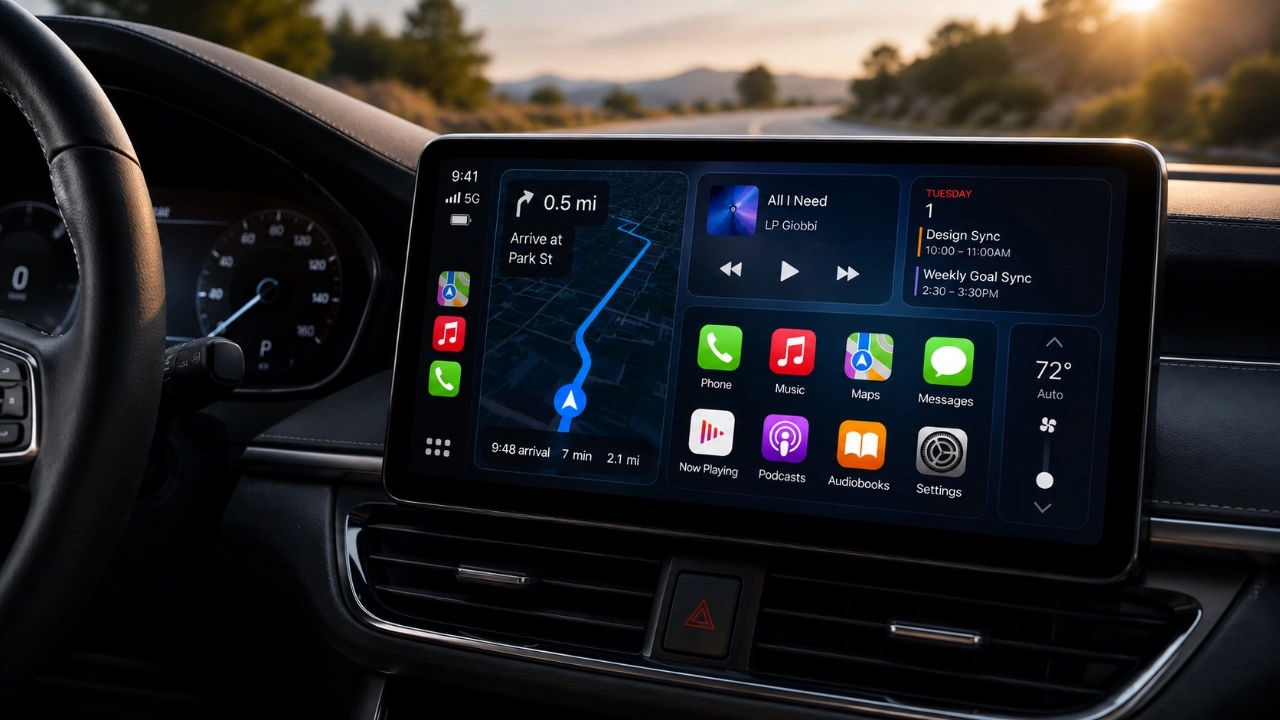
Apple CarPlay has fundamentally transformed the modern in-cabin automotive experience, seamlessly bridging the gap between Apple’s iOS ecosystem and vehicle infotainment systems. By projecting essential communication, navigation, and entertainment utilities onto the dashboard console, it aims to minimize distractions and keep drivers connected safely. However, despite its widespread adoption across millions of vehicles worldwide, the software is not immune to friction. Persistent connectivity bugs, sudden audio dropouts, intrusive automatic music playback, and rigid interface layouts often mar the user experience.
Addressing these technical hurdles is more than just a matter of convenience; it is a critical component of vehicular safety. When a driver is forced to wrestle with lagging touchscreens, unexpected audio bursts, or dropped Bluetooth and Wi-Fi handshakes, their attention is diverted away from the road.
Drawing from expert technical breakdowns—such as the recent diagnostic guides provided by Proper Honest Tech—this article offers an authoritative, deep-dive manual into resolving Apple CarPlay’s most frustrating anomalies. From mastering wireless handshake failures and leveraging offline cartography to harnessing Apple Intelligence and iOS Shortcuts for hyper-personalized automations, this guide equips you with the advanced configurations necessary to transform CarPlay into a reliable, distraction-free co-pilot.
Detailed Chronology of CarPlay Evolution and Common Pain Points
The Rise of In-Car Integration
Since its initial unveiling as "iOS in the Car" at WWDC 2013 before officially launching as CarPlay in 2014, Apple’s vehicular interface has evolved from a simple tethered projection tool into a deeply integrated operating environment. Early iterations relied exclusively on a physical Lightning cable connection, which, while stable, chained users to hardwired physical limits.
The subsequent rollout of wireless CarPlay—utilizing a concurrent handshake protocol combining Bluetooth for initial discovery and localized Wi-Fi for high-bandwidth data streaming—introduced unprecedented convenience. Drivers could step into their vehicles, leave their iPhones tucked safely inside a pocket or charging pad, and instantly access their digital lives.
The Emergence of Modern Glitches
Yet, this technological leap forward brought a complex array of software and hardware synchronization challenges.
- The Wireless Handshake Breakdown: Wireless connections depend heavily on uninterrupted 2.4GHz and 5GHz Wi-Fi spectrums inside the cabin. Interference from aftermarket dashcams, local cellular towers, and overlapping Bluetooth accessories frequently causes dropped sessions, laggy input response, or complete failure to pair.
- Audio Interruptions and Startling Playback: A classic frustration involves the system aggressively launching Apple Music or third-party streaming apps the microsecond the iPhone connects, often startling the driver with maximum-volume audio before they have even reversed out of the driveway.
- The Siri Volume Disconnect: Historically, managing Siri’s speech output has been an exercise in frustration. If a driver adjusted the master cabin volume while Siri was speaking to make her louder, they inadvertently blasted subsequent turn-by-turn navigation prompts or music tracks to dangerous decibel levels.
- Interface Clutter: As more third-party applications integrated into CarPlay—ranging from messaging services to parking apps—the default home screen layout became disorganized, forcing drivers to swipe through multiple pages of icons to locate essential tools like Apple Maps or Spotify.
Supporting Context & Metrics: The Ergonomics of In-Car Tech
Driver Distraction and Cognitive Load
According to research from automotive safety organizations and human-factors engineering studies, cognitive and visual distraction remains a leading contributor to traffic incidents. When an infotainment system exhibits high latency or unpredictable behavior, it spikes the driver’s visual-manual distraction index.
- The Glance Time Metric: Industry standards suggest that individual glances away from the road should not exceed two seconds. Unresponsive touchscreens or complex menu trees frequently force drivers to glance repeatedly at the dashboard, drastically increasing risk exposure.
- The Value of Tactile and Audio Cues: Minimizing visual dependency by shifting notifications to secondary devices—such as utilizing Apple Watch wrist taps for navigation alerts—directly aligns with ergonomic safety best practices. By offloading turn-by-turn cues to haptic feedback, drivers maintain their visual focus squarely on the highway ahead.
Technical Anatomy of Wireless CarPlay
To understand how to fix connectivity problems, one must examine how the connection is established. Wireless CarPlay is resource-intensive on the iPhone’s networking stack. When you start your vehicle:
- The head unit broadcasts a Bluetooth low-energy (BLE) beacon.
- Your iPhone detects this beacon and initiates a secure pairing request.
- Upon validation, the vehicle’s head unit commands the iPhone to disconnect from its current Wi-Fi network and join a dedicated, hidden Wi-Fi Direct access point hosted by the car.
- Any interference during this multi-step network handoff results in the infamous "CarPlay not available" error message.
Step-by-Step Technical Troubleshooting & Optimization
1. Fixing Wireless CarPlay Connectivity Problems
When wireless CarPlay refuses to establish a stable session, a systematic network reset is required.
- Clear Existing Profiles: Navigate to your iPhone’s Settings > General > CarPlay, select your specific vehicle profile, and tap Forget This Car. Simultaneously, go to your car’s infotainment settings, locate the connected devices list, and delete your iPhone profile.
- Reset Network Stack: If intermittent drops persist, reset your iPhone’s network settings via Settings > General > Transfer or Reset iPhone > Reset > Reset Network Settings. Note that this will erase saved Wi-Fi passwords, requiring you to rejoin home and work networks.
- Disable VPN and Conflicting Profiles: Virtual Private Networks (VPNs) and specialized security profiles often intercept local Wi-Fi routing tables, blocking the peer-to-peer connection required by CarPlay. Toggle off any active VPNs before entering the vehicle.
2. Safeguarding Against Signal Loss with Offline Navigation Maps
Cellular dead zones are an inevitable reality of long-distance driving, and losing your data connection precisely when you need an upcoming highway exit can ruin a trip.
- Proactive Downloading in Apple Maps: Open Apple Maps on your iPhone prior to departure, tap your profile picture or initials, select Offline Maps, and tap Download New Map. Select your destination region or frequent driving corridors and adjust the bounding box to capture all necessary metropolitan and rural areas.
- Fallback Systems: Ensure that real-time routing data is supplemented by pre-cached local topography, ensuring that even if your 5G or LTE connection drops to zero bars, turn-by-turn logic remains locally executable on your device.
3. Silencing Automatic Music Playback via iOS Shortcuts
The abrupt onset of high-volume music upon vehicle connection can be irritating. You can permanently suppress this behavior by engineering an automation within the native iOS Shortcuts app.
- Open the Shortcuts application and tap the Automation tab at the bottom of the screen.
- Tap the + (plus) icon in the top right corner to create a new personal automation.
- Scroll down and select CarPlay from the list of triggers, configuring it to trigger When CarPlay Connects.
- Add an action to the workflow: search for Set Volume or Play/Pause, and set the parameter to pause media playback or explicitly direct audio output to the iPhone’s internal speaker rather than the vehicle’s high-power amplifiers.
- Ensure Run Immediately is toggled on and Notify When Run is toggled off for a silent, seamless background execution. For users operating iPhones equipped with advanced Apple Intelligence tiers, conversational shortcuts can be integrated to conditionally evaluate time of day or cabin passenger profiles before executing media rules.
4. Independent Management of Siri’s Voice Volume
Balancing Siri’s vocal delivery relative to your music library no longer requires frantic volume knob adjustments mid-sentence.
- The key to isolating Siri’s audio channel is timing: you must actively adjust the car’s master volume while Siri is speaking.
- Invoke Siri via the steering wheel control button or by saying "Siri," and immediately turn your car’s physical volume knob up or down while she is actively processing or responding to your request. The infotainment operating system registers this adjustment specifically for the voice synthesis channel, locking in a customized decibel level that leaves your favorite playlist and navigation prompts completely untouched.
5. Customizing the CarPlay Interface for Maximum Safety
Cluttered dashboards slow down decision-making. Organizing your app layout ensures your most critical tools are instantly accessible.
- On your iPhone, navigate to Settings > General > CarPlay and select your vehicle.
- Tap Customize. Here, you will see a visual representation of all CarPlay-compatible applications.
- Use the drag handles on the right to reorder applications, placing mission-critical utilities like Maps, Spotify, Phone, and Messages at the very top of the grid.
- Delete or hide rarely used third-party applications to streamline the display, reducing visual noise and making touch targets easier to hit while keeping your eyes focused on the road ahead.
6. Enhancing Music Playback, Scrubbing, and Display Resolution
- Advanced Media Navigation: Utilize Apple Music’s context-aware UI enhancements to scrub through long-form podcasts or continuous DJ mixes safely using simplified graphical progress bars.
- Smart Display Zoom: Head into your car’s internal CarPlay settings menu (accessible directly on the dashboard screen, separate from your iPhone settings) and toggle Smart Display Zoom. This feature dynamically alters icon density, scaling typography and button sizes based on ambient lighting conditions and the physical resolution of your dashboard monitor, ensuring optimal legibility whether you are driving under harsh midday glare or navigating dark rural highways.
7. Upgrading Alerts via Apple Watch Wrist Taps
To eliminate the temptation to glance at a glowing dashboard screen for minor directional prompts, integrate wearable haptics.
- Within the Watch app on your iPhone, navigate to Settings > Maps.
- Ensure that driving haptics are enabled. When approaching a critical left or right turn, your Apple Watch will deliver distinct series of wrist taps (e.g., twelve rapid taps for a right turn, three steady taps for a left turn). This intuitive haptic language allows you to navigate complex urban environments entirely by touch, minimizing cognitive overhead.
Future Outlook: The Next Generation of Automotive Integration
As automotive architecture transitions toward software-defined vehicles (SDVs), the role of Apple CarPlay is expanding dramatically. Apple’s next-generation CarPlay ecosystem promises to take over not just the central infotainment screen, but every digital display inside the cabin—including the digital instrument cluster, climate control modules, and heads-up displays (HUDs).
Future updates will lean heavily on deeper vehicle data integration, allowing drivers to monitor tire pressures, battery charge metrics, fuel levels, and oil temperatures natively through a unified Apple-designed interface. Furthermore, as on-device artificial intelligence engines become more powerful, predictive routines will anticipate your driving habits—automatically plotting routes to your office on Tuesday mornings, pre-cooling the cabin based on weather telemetry, and pre-emptively troubleshooting wireless connectivity drops before they disrupt your journey.
By taking control of your current CarPlay configurations today—optimizing wireless profiles, locking down offline maps, taming unruly audio playback, and prioritizing interface layout—you lay the foundation for a safer, smarter, and infinitely more reliable driving experience.








Belum ada komentar. Jadilah yang pertama berkomentar!